Part 2 - Profiles & Permission Sets
Under-the-hood peek at Salesforce Permission Sets and Profiles

Well then, time to get started on Profiles, Permission Sets & such; I did promise :)
Also - while I was drafting this, I realised I’d missed an entire area of sharing setup - Files, Documents, Libraries etc… so that’ll be Part 6, whenever it is that I get there.
Profiles
For as long as I have been working with Salesforce, in any sort of admin capacity, right from my first admin course, profiles have been a core feature of how permissions are granted in Salesforce - and yet, as we know, that's not the way anymore - or at least won't be for long.
New best practice for profiles
Years ago, and miles away, as the saying goes, I - and probably you too - learned that when creating a new access / user group, using profiles, we were supposed to clone a standard (or custom!) profile and modify the necessary permissions on the clone.
Last year, when I was studying for the Sharing & Visibility Architect cert, having gotten an "incorrect" from a practice test, I needed to verify it, because I didn't believe it - the Salesforce best practice is no longer to do that.
The new best practice, for all internal users, is to use the Minimum Access - Salesforce profile. No, not cloning it, using the standard profile, and granting all permissions through permission sets and permission set groups.
Here's a link to Salesforce's "Admin Best Practices for User Management" guide.
Now, understandably, there could (will) be situations, where you just need different profiles; some things can still only be defined by profile - and, if you need multiple profiles, e.g. for assigning page layouts, my recommendation is to use the minimum access profile as a baseline, clone that - and do not add permissions to it!
Some of the profile only settings are listed below - and if your org is even a bit older, it's more than likely that when Salesforce created the profile few years ago, they did not define any of these things; I mean, of course they didn't; they don't know what Case or Account page layout you'd want to assign to the users with that particular profile, so they didn't assign any.
Default record type (you always need to define it for Activities/Tasks/Events)
Default Apps (in my experience, not that much of a big deal)
Page layout assignment
This one can easily be helped with the dynamic page thingies in lightning record pages
Certain security settings that can override system wide default settings, e.g. password policy
Login Hours
IP Ranges
...and then there's the exception that still follows the Ye Olde Ways: external profiles - i.e. all Experience Cloud profiles, for which the best practice still is to clone the appropriate standard profile and then assign that to users.
Why? Well... the Salesforce's Minimum Access user profile has been locked to use Salesforce user license, and those are expensive, when compared to Experience licenses, so effectively you can't use it that way.
Assigning permissions through profiles is pretty standard - most of us have done it; enter setup, type "profi" in the QuickFind box and edit the profile as needed.
Permission Sets
I'll jump to Permission Sets at this point, rather than continue with the Profiles, because under the hood, all permissions granted through profiles are actually granted through hidden permission sets.
Yes, that's correct. I learned this only fairly recently, when I was looking for a permission set that granted permissions for a specific object - not entirely atypical for me, I have ADHD and sometimesoften forget things - and when I ran the SOQL in the Inspector, I discovered permission sets that looked wonky...
...and when I looked deeper into them, I discovered that their parents were profiles; there's even specific fields to indic ate that the parent permission set is owned by a profile - and the parent's profile name.
In this query I added few "plus" fields to show the fields there:
SELECT Id, ParentId, Parent.Name, Parent.IsOwnedByProfile, Parent.Profile.Name
FROM ObjectPermissions
WHERE SobjectType = 'Account'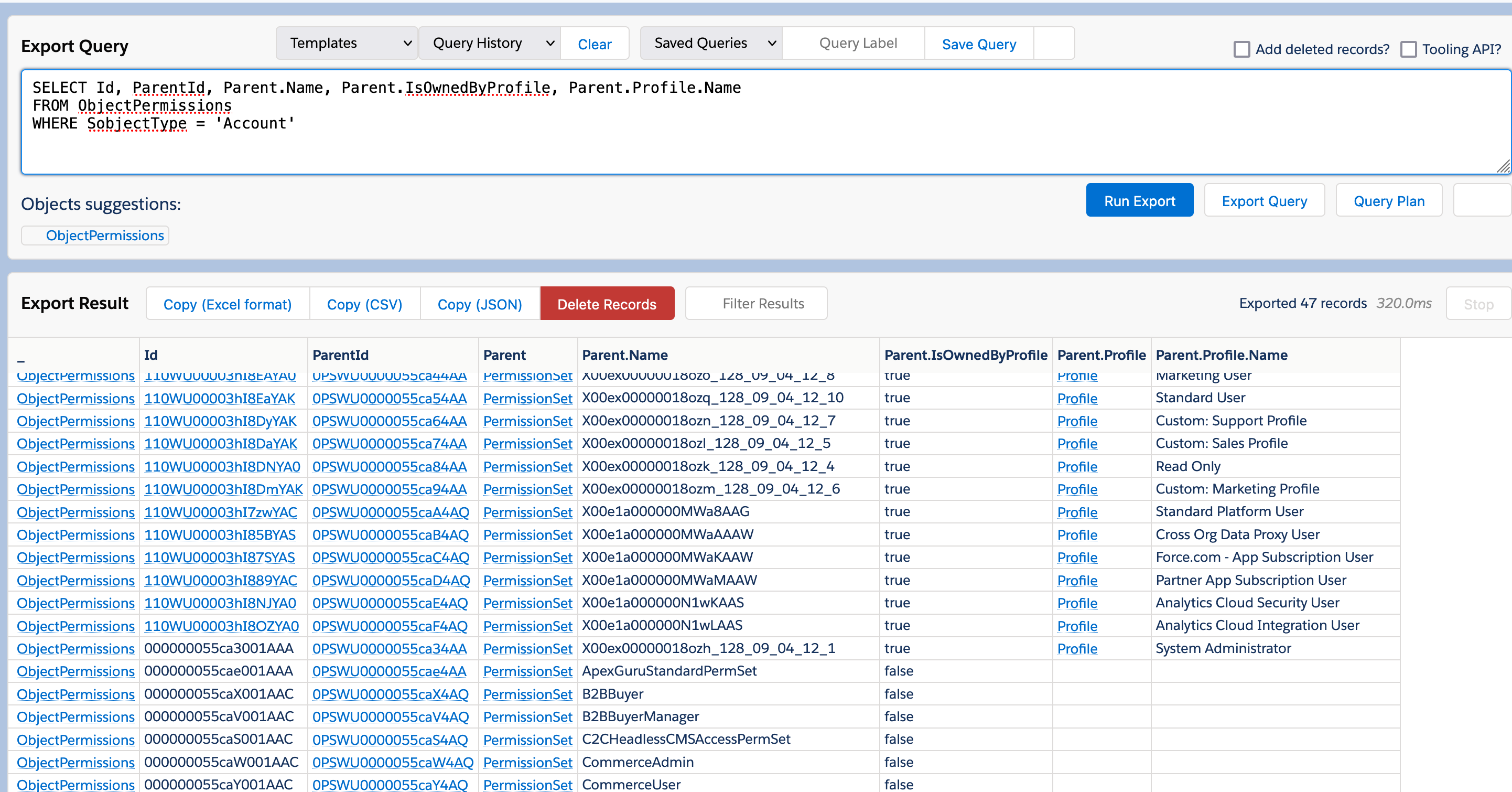
Object & Field Permissions
Now, as I walked you through in the Part 1, for objects, there are specific permission records, ObjectPermissions and FieldPermissions that define the access for objects and fields, CRED + View / Modify All and Read / Write.
These permission records can't be assigned directly to users; they have a parent (logically speaking) that is a permission set, which in turn may have a permission set group (or the aforementioned profile) as a parent. Logically, that is; the table structure is another thing, but we'll cover that too.
So permission sets consist of their member object and field permissions. But what about those System Permissions?
Well, they‘re just integrated in there, almost all permission set have the capability of granting a system permission - adding a permission in the UI will create a new row for it in the permission set.
Let's go take a look at some - here I'll create a new, blank permission set without any permissions in it:
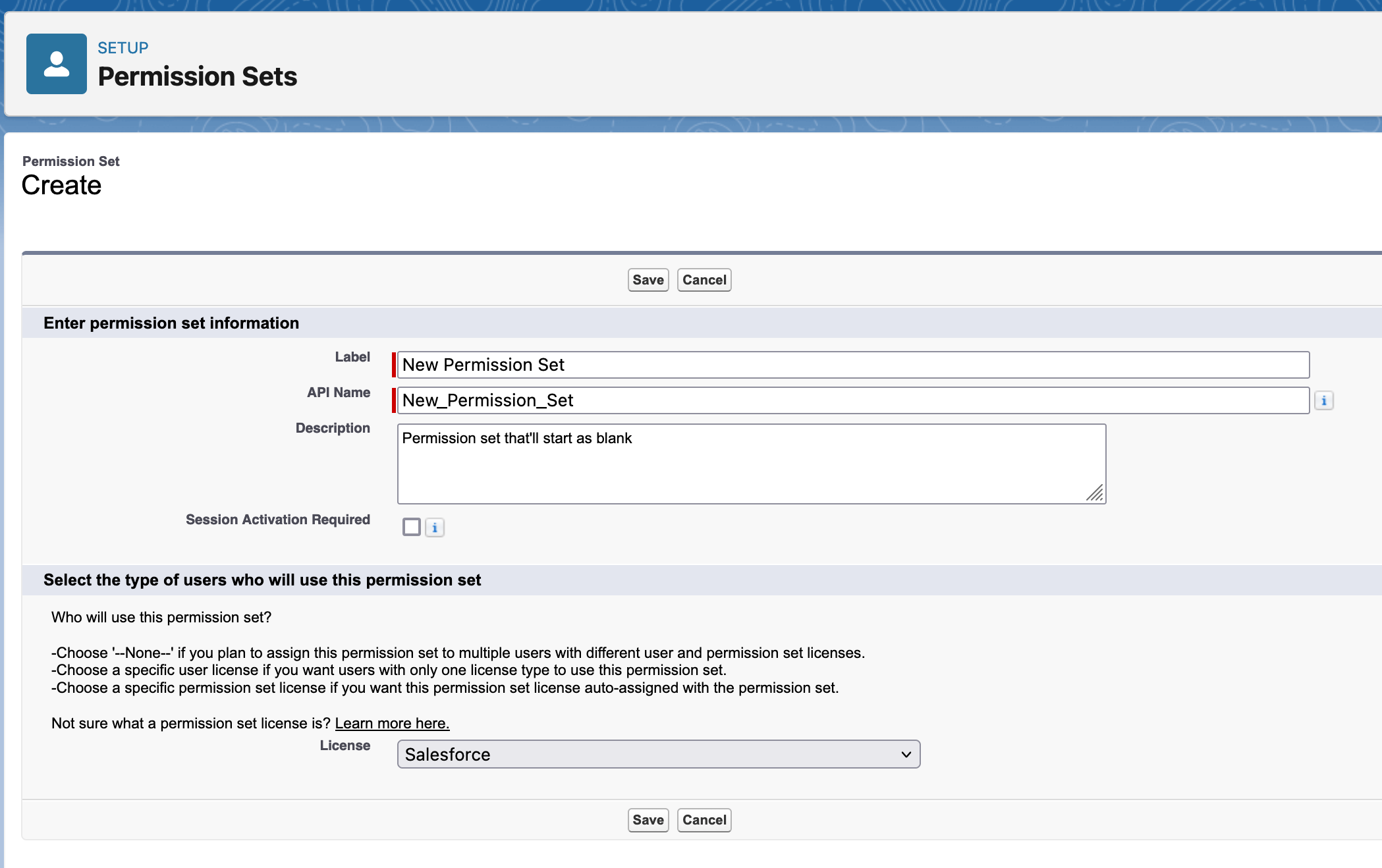
So let's go and query it a bit:
SELECT Id, PermissionsRunReports, PermissionsManageUsers
FROM PermissionSet
Where Name = 'New_Permission_Set'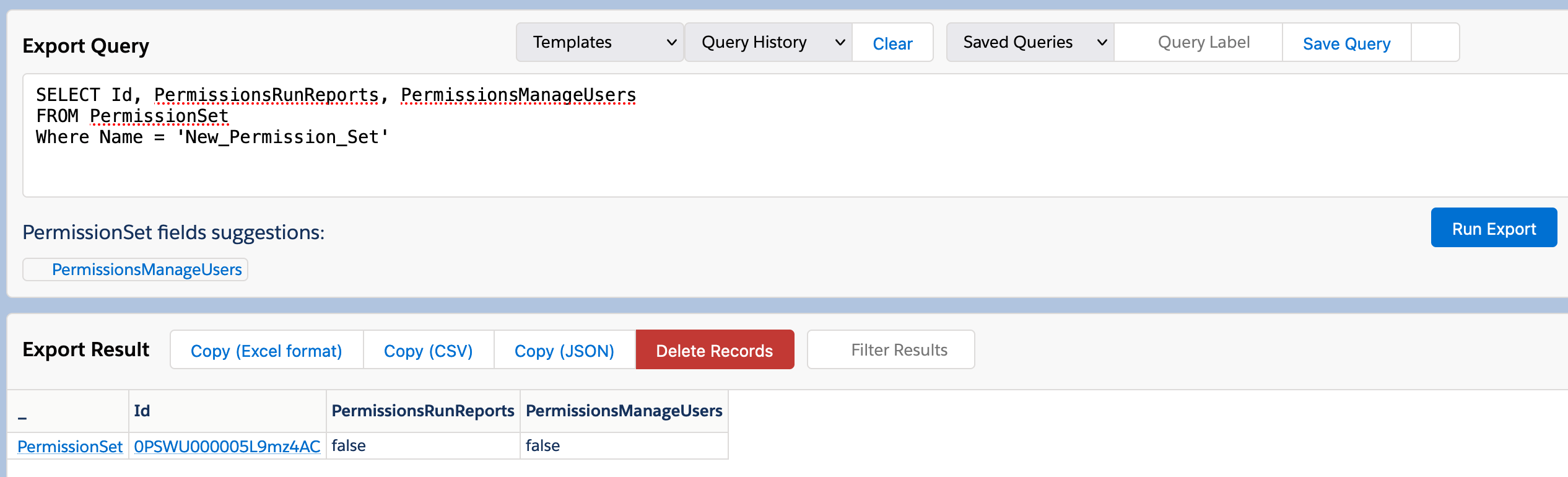
So, as we can see, querying the permission set gives us - as expected - a false on both of the permissions I queried, because we didn't give it any permissions yet.
Here, I've pulled the permission set's XML with VSCode:
<?xml version="1.0" encoding="UTF-8"?>
<PermissionSet xmlns="http://soap.sforce.com/2006/04/metadata">
<description>Permission set that'll start as blank</description>
<hasActivationRequired>false</hasActivationRequired>
<label>New Permission Set</label>
<license>Salesforce</license>
</PermissionSet>You'll see that there are no permissions defined in it, so let's go & add some :)
So - let's add permission to run reports, CRED, view all, modify all, access to Tabs to Accounts - the whole nine yards, just on the regular in the user interface:
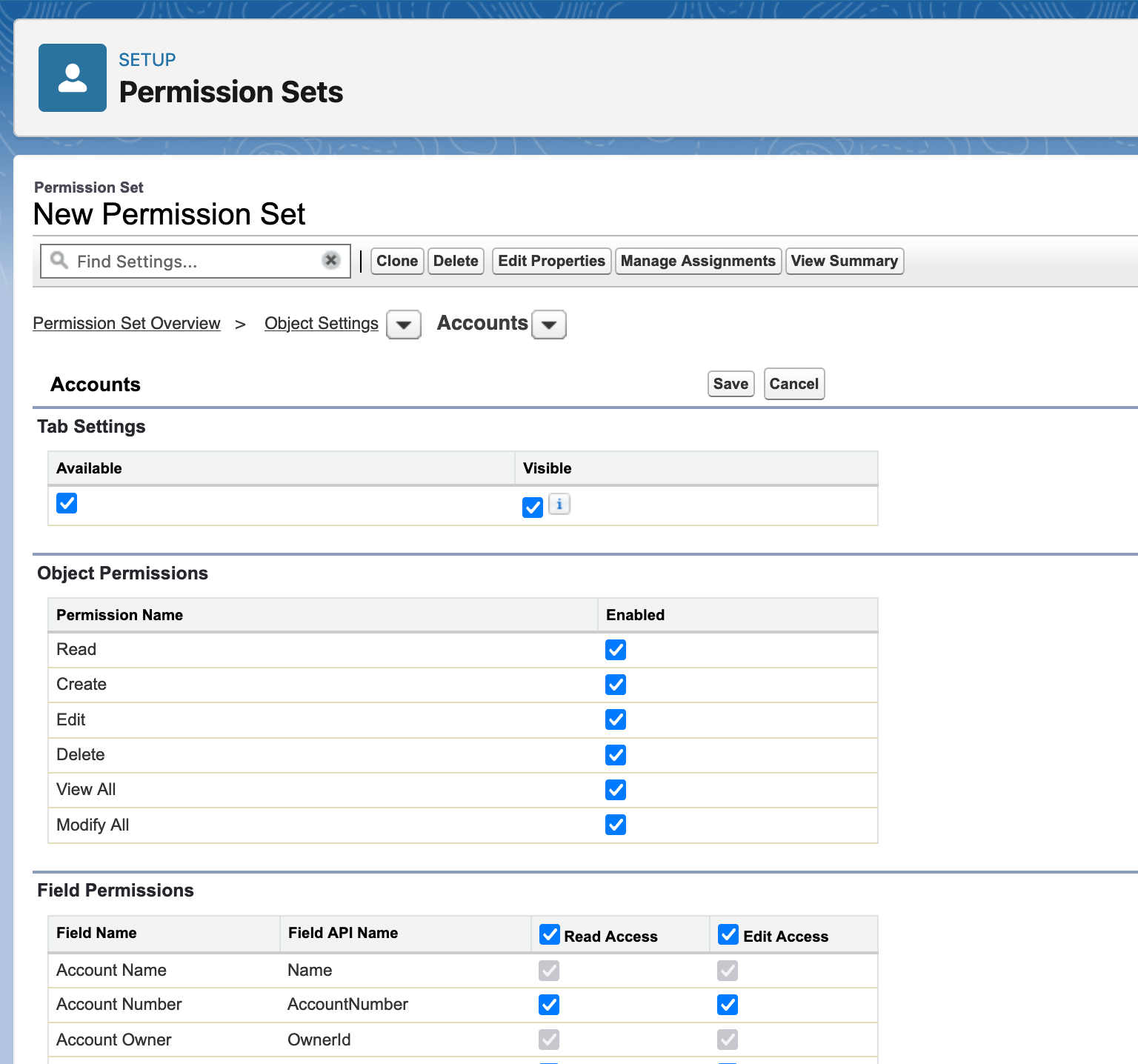
...and let's now query all those permissions, first the system permissions, and as we expected, the PermissionRunReports is now "true"...

...and the XML looks like this:
<?xml version="1.0" encoding="UTF-8"?>
<PermissionSet xmlns="http://soap.sforce.com/2006/04/metadata">
<description>Permission set that'll start as blank</description>
<fieldPermissions>
<editable>true</editable>
<field>Account.AccountNumber</field>
<readable>true</readable>
</fieldPermissions>
...snip...
<fieldPermissions>
<editable>true</editable>
<field>Account.YearStarted</field>
<readable>true</readable>
</fieldPermissions>
<hasActivationRequired>false</hasActivationRequired>
<label>New Permission Set</label>
<license>Salesforce</license>
<objectPermissions>
<allowCreate>true</allowCreate>
<allowDelete>true</allowDelete>
<allowEdit>true</allowEdit>
<allowRead>true</allowRead>
<modifyAllRecords>true</modifyAllRecords>
<object>Account</object>
<viewAllRecords>true</viewAllRecords>
</objectPermissions>
<tabSettings>
<tab>standard-Account</tab>
<visibility>Visible</visibility>
</tabSettings>
<userPermissions>
<enabled>true</enabled>
<name>RunReports</name>
</userPermissions>
</PermissionSet>Where you see the ...snip... I cut off about umpteen field permission definitions, and yes, while I earlier have said that we don't define field permissions or object permissions directly to Permission Sets, they are included here in the configuration XML I downloaded with VSCode.
But even so, when we go and query the information, the configuration itself is not in the permission set, but Object permissions (CRED etc.) are in the ObjectSettings table:
SELECT Id, Parent.Name, PermissionsCreate, PermissionsRead, PermissionsEdit, PermissionsDelete, PermissionsViewAllRecords, PermissionsModifyAllRecords
FROM ObjectPermissions
WHERE SobjectType = 'Account' AND Parent.Name = 'New_Permission_Set'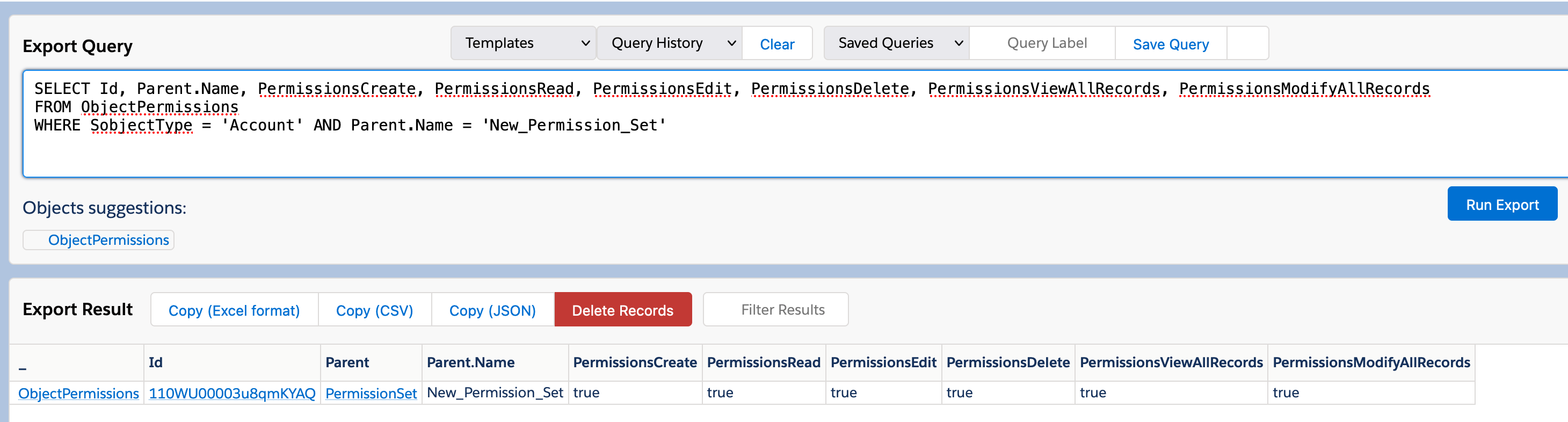
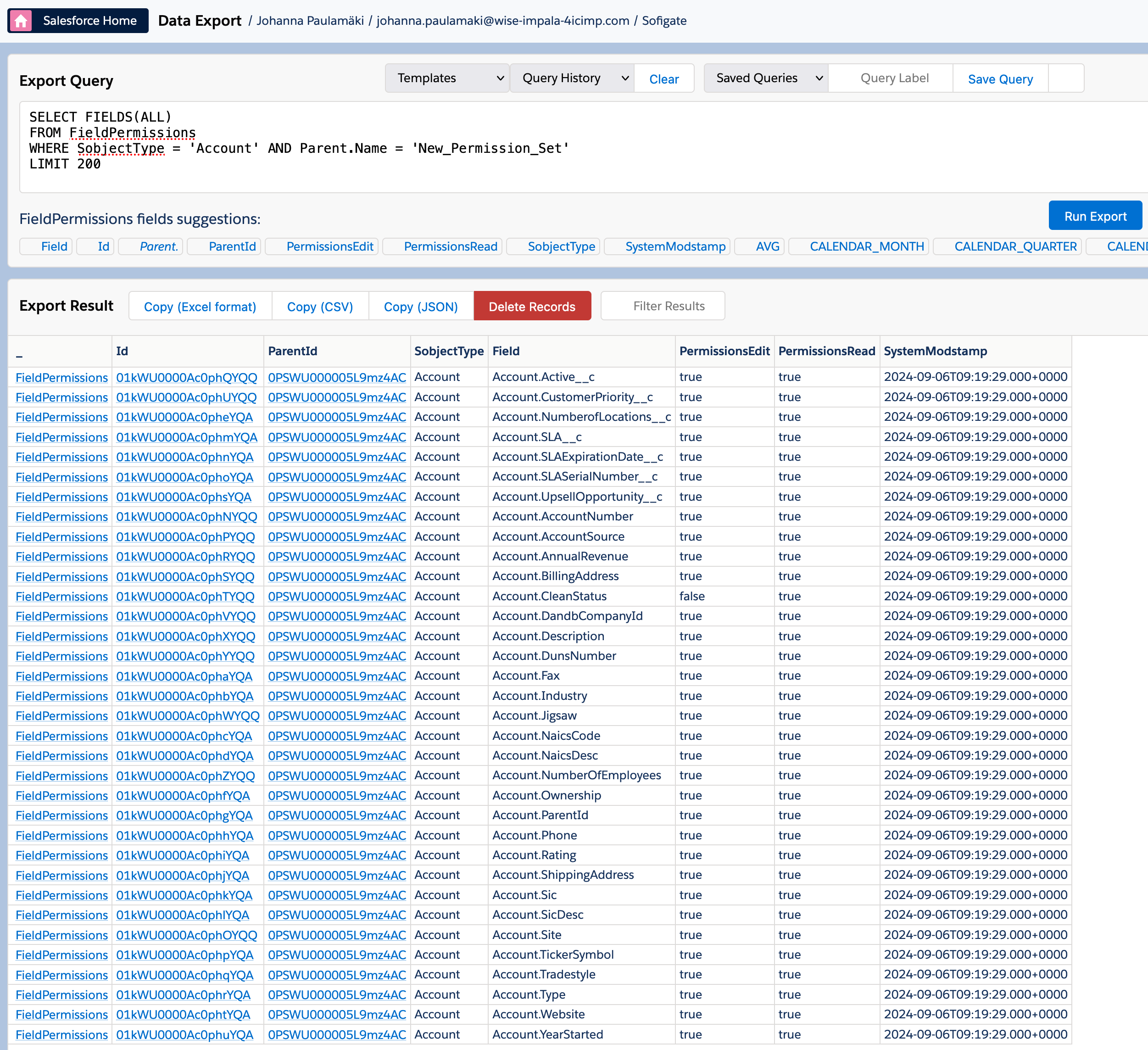
...and respectively, the Field permissions are in the FieldPermissions table:
SELECT FIELDS(ALL)
FROM FieldPermissions
WHERE SobjectType = 'Account' AND Parent.Name = 'New_Permission_Set'
LIMIT 200
Here in the query above you'll note that because I didn't want to list all fields separately, I used the Fields(ALL) selector, which is nice shortcut, but thing with that is that you have to add the LIMIT 200 filter at the end. Now, in this case, our fresh playground org doesn't have that many fields on the account, so all were listed.
...and from here I'll take a sidetrack to tell you why I started looking into this all 😁
It wasn't a dark & stormy night, but it was a night; might have been late March or early April. I'd spent a few days creating a ton of new permission sets for a ballpark of 100 objects for a customer project by using rather creative approach of copy, paste, search & replace and VSCode, and as my brain never really stops, apparently I was processing that still when I was sleeping.
Or at least until I woke up to go to the bathroom - then I got this crazy idea that what if I wouldn't have to do all that work myself, but get the org to do that? With Flows? So I did as I do with all the crazy ideas that I come across - emailed it to myself so I won't forget 'em, but can focus on the task at hand, like sleeping…
So the next day, I started digging, and while I was, at that point, already fairly familiar with the XML file structure, when I fired up the flow and started querying the permissions - they weren't there, dammit. So I dug deeper, and here we are 😂
Anyway - still haven't built that flow, but now I think I could 😁
Well, back to business. That's how Object Permissions, Field Permissions and System Permissions tie together to form Permission Sets.
Let's take a look at the groups next.
Permission Set Groups
Unlike Permission Sets, Permission Set Groups do not grant any permission directly, but through its member permission sets and similarly, it can revoke permissions through its member muting permission set. I'll walk you through the muting bits in a bit, but let's first take a look at a regular permission set group:
SELECT Id, DeveloperName, MasterLabel, Language, Description, Status, HasActivationRequired
FROM PermissionSetGroup
WHERE DeveloperName = 'New_Permission_Set_Group'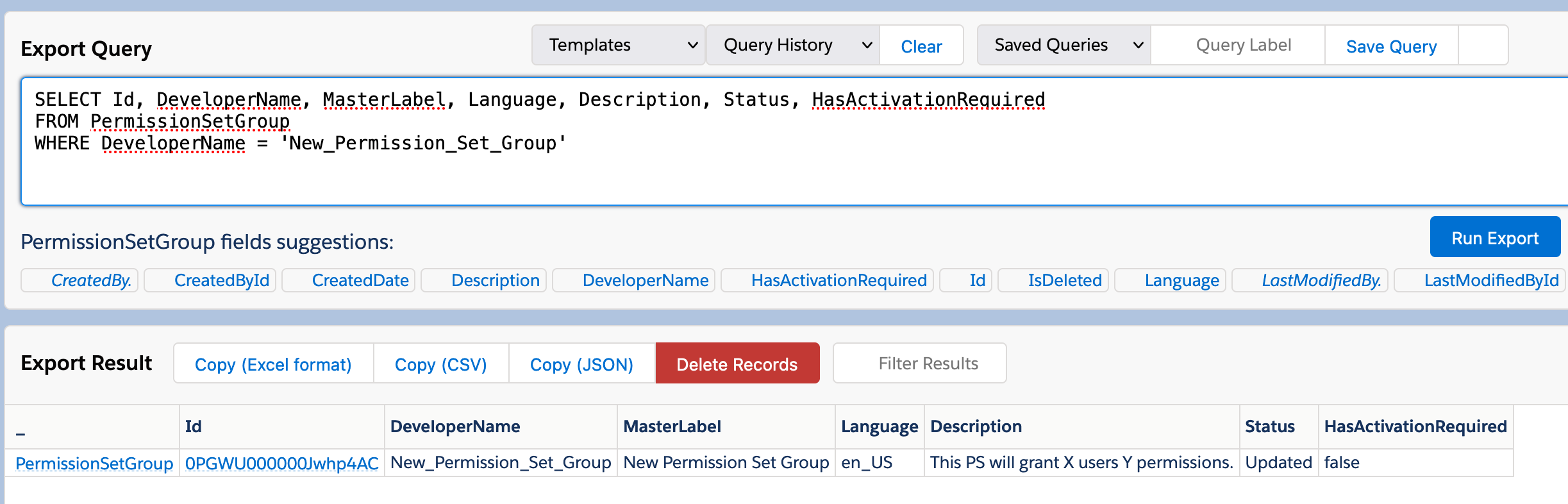
There's not really much in the way of definable information in the permission set group; if you query the Fields(ALL), you'll get the whole list, it has the usual created dates, created by's and so on, but not much else, really; the XML doesn't give much other information either:
<?xml version="1.0" encoding="UTF-8"?>
<PermissionSetGroup xmlns="http://soap.sforce.com/2006/04/metadata">
    <description>This PS will grant X users Y permissions.</description>
    <hasActivationRequired>false</hasActivationRequired>
    <label>New Permission Set Group</label>
    <mutingPermissionSets>Muting_Permission_Set_1</mutingPermissionSets>
    <status>Updated</status>
</PermissionSetGroup>
So... how do we get the permission sets to be members of the permission set groups, then? The answer lies in PermissionSetGroupCompoment table.
Permission Set Group Components
This table / entity / object is also very simple; it's essentially a junction object between permission set and permission set group tables, enabling any to any relations.
Gist of it is, that for each permission set that is included in permission set groups, there will be a row, an entry in that table. One permission set in two groups - two rows. Two permission sets in two permission set groups - four rows, one per each relation.
These component records can also be created, as long as you know which items you're referring in it.
Here's an example query (and results) with the Fields(ALL) - again the Limit operator there because of the query keyword:
SELECT FIELDS(ALL)
FROM PermissionSetGroupComponent
LIMIT 200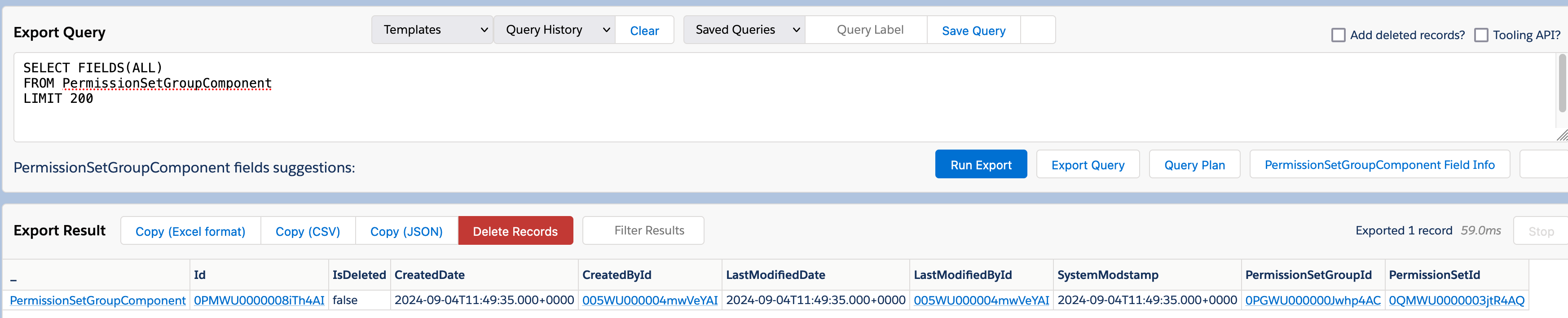
Looking closely enough, there are the key fields PermissionSetGroupId and PermissionSetId.
...so assign those right, and you can join (almost) any Permission Set into (almost) any Permission Set Group. I'm saying almost, 'cos I expect there will be exceptions...
Muting Permission Sets
Way back when I started blazing (or tiptoeing along) my Salesforce Trail, Salesforce's sharing setup was very simple: Either you granted everybody full permissions to do something, or else you locked it down entirely, and opened it as needed; there wasn't any way to close things down, once opened.
This changed some years ago, when Salesforce introduced Muting Permission Sets, which can do just that; there are also other "locking down" mechanisms, such as Restriction Rules, but I'm covering them later, maybe in part 3.
Muting Permission Sets are a bit of a special case, and very handy creature indeed.
While back I was involved in a project, where in two main permission set groups were set to grant broad strokes of access to all sales users across several countries, and then a third, country-specific permission set group was added to each country's users to a) enable specific things for those countries' sales organizations and b) to hide away some things that were not specific for their countries' sales organizations.
For this the country-specific permission set group had a country specific permission set - and equally country-specific Muting Permission Set.
You can only define MPS's within a permissions set group, and then only one, so if you're using one, you'll need to cram all limiting you're going to do in the same permission set.
To create one in the UI, you'll need to open up the permission set group, then click on the Muting Permission Set, thusly:
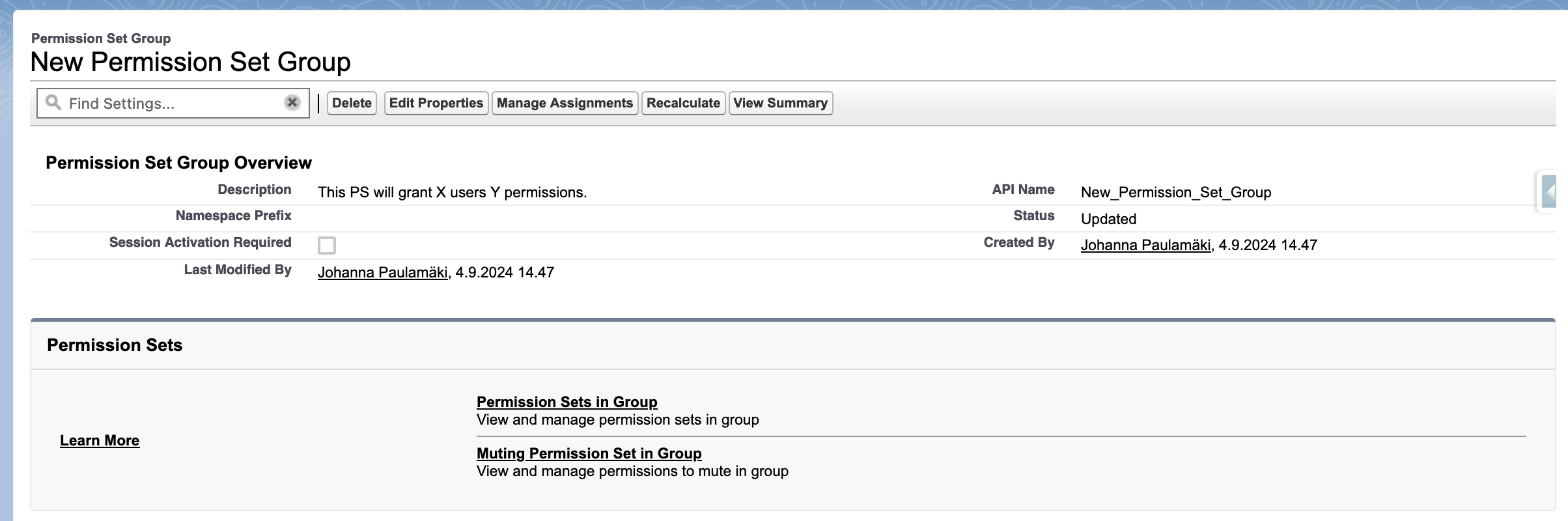
Note that the UI is exactly the same for the MPS as it is for regular PS - just a subheading and those labels there are saying that these are muting permission sets:
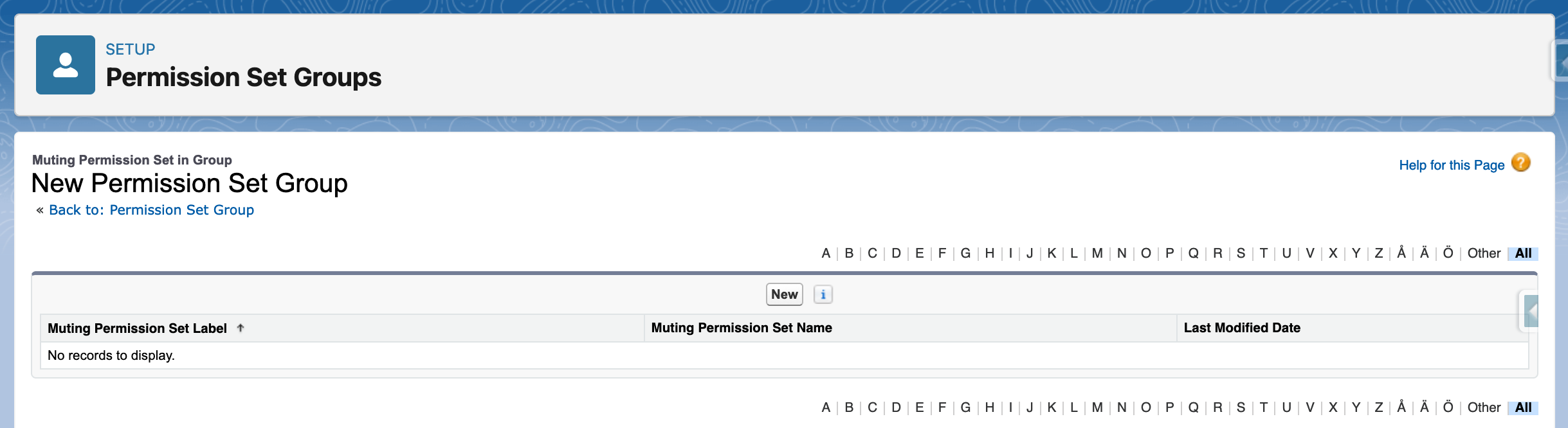
The name defaults to the PSG's + Muted, but you can change it, if you want to:
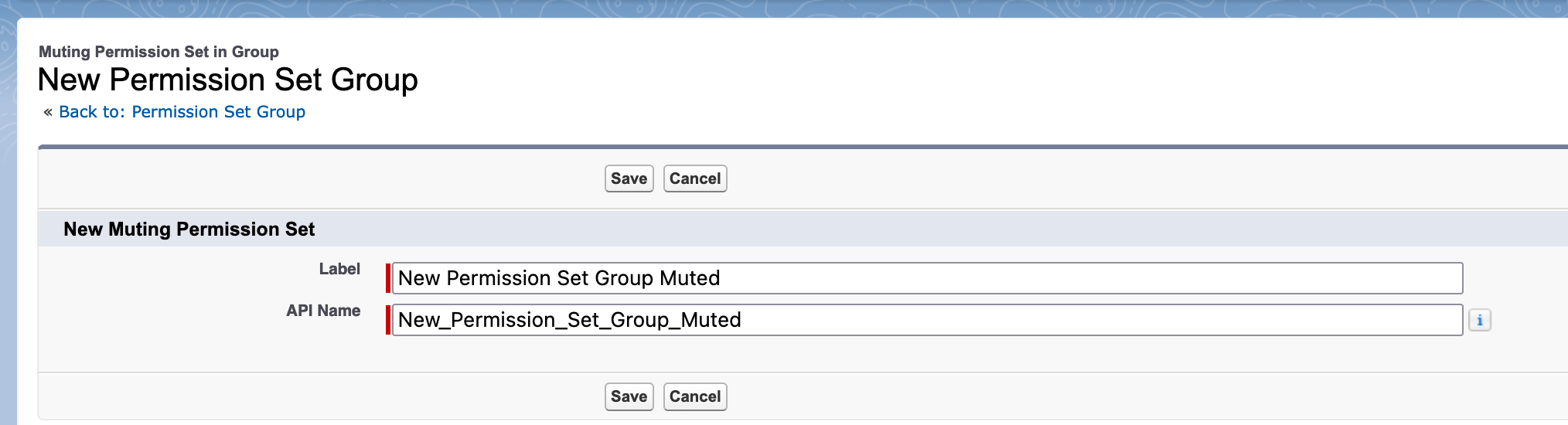
...and that's it, a muting permission set has been created.

Permission Set Assignment
Okay, so now that we know how all of that works, there's the question of assigning these to users, and yes, it's users; none of these can be assigned to groups, for a good reason, some of which I'll go into when we look at groups & such in (probably) Part 4.
But let's go and assign both the permission set and permission set we've created for my user in the Trailhead org; as a sidenote, they are a wonderful invention, 'cos it doesn't matter how badly you'll mess up something in one of them, you can always disconnect it and spool up a new one.
Aanyway... The assignment. I sorta expect you can assign a permission set (or a group, the mechanism is exactly the same) to a user, so I won't bore you with that, but here's the query to PermissionSetAssignment:
SELECT FIELDS(ALL)
FROM PermissionSetAssignment
WHERE Assignee.Username = 'johanna.paulamaki@wise-impala-4icimp.com'
LIMIT 200
...and results:
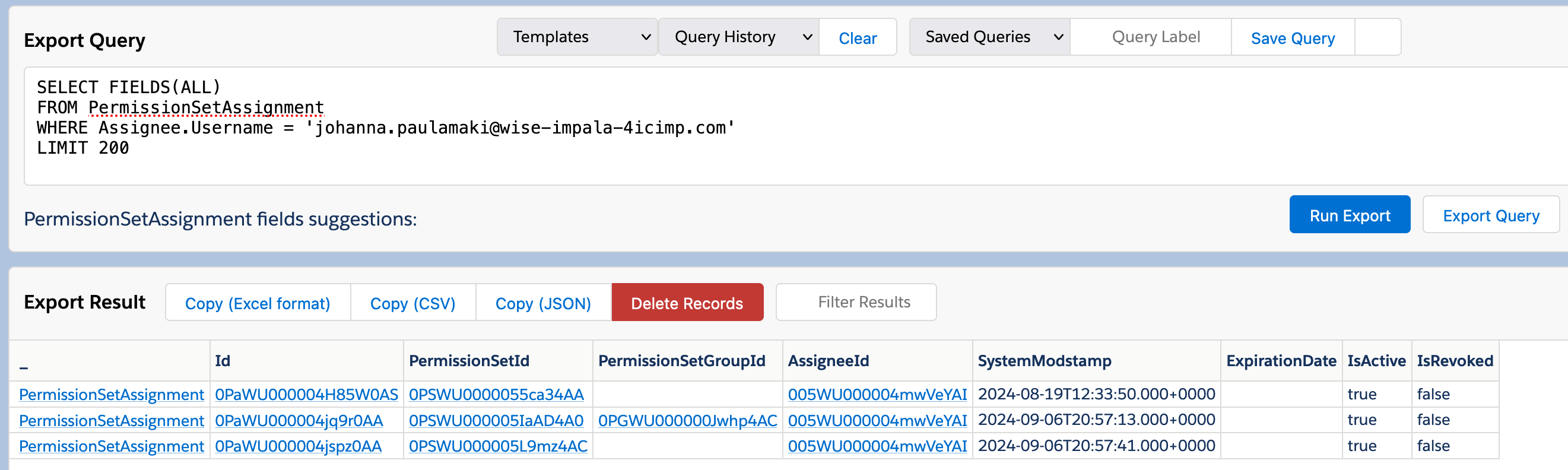
It could of course be just me, but I don't find that super readable, so let's do it again, but let's make it a bit more informative:
SELECT PermissionSet.Name, PermissionSetGroup.DeveloperName, Assignee.Username
FROM PermissionSetAssignment
WHERE Assignee.Username = 'johanna.paulamaki@wise-impala-4icimp.com'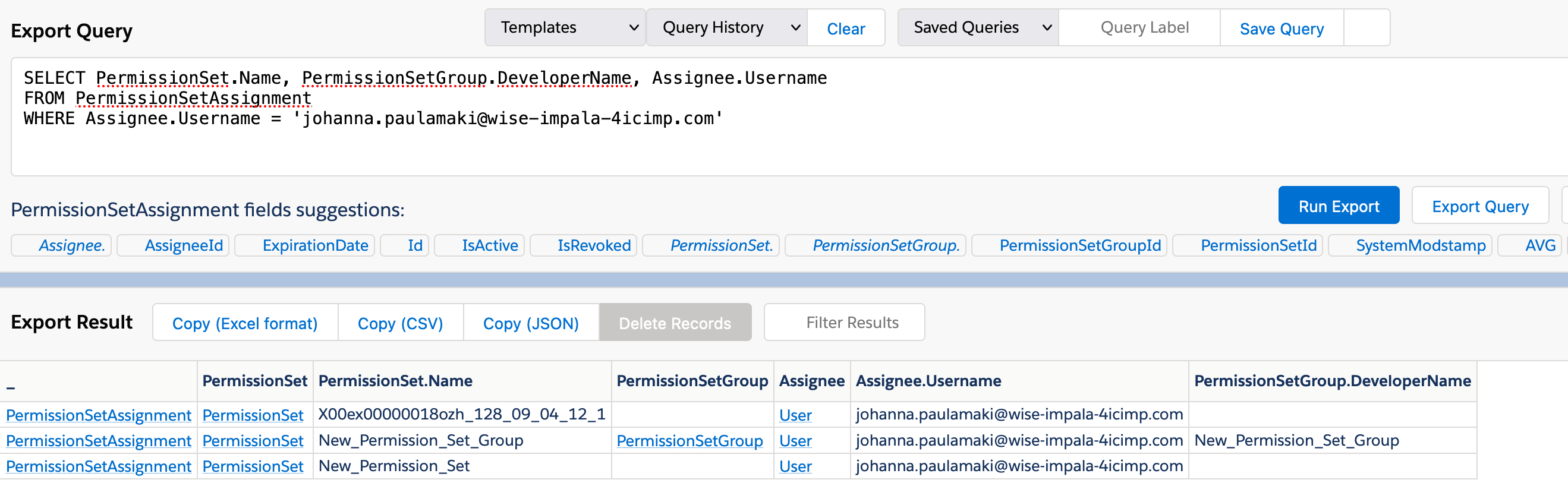
Here you'll see that while I've created only two entities that I've granted my user the access to, one permission set and one permission set group, there's the third (or first, however you want to look at it), that starts with X00 - that would be the System Administrator Profile's underlying permission set.
You'll also see that the exact same entitiy type, PermissionSetAssignment, is used to assign both permission sets and permission set groups to users.
Another noteworthy thing is, that while we earlier set the New Permission Set to be a member of the New Permission Set Group, we only have one permission set assignment coming out of that.
To confirm that, the Permission Set Group's Muting Permission Set doesn't show up here - so each assignment of permission set groups will create only assignment records, regardless of how many members the groups has - well, except that the limit is 100 permission sets in a permission set group, but anywho.
Also, it just occurred to me that I don't know if the muting permission set would count towards that 100... but that's neither here nor there, really.
Table Structure
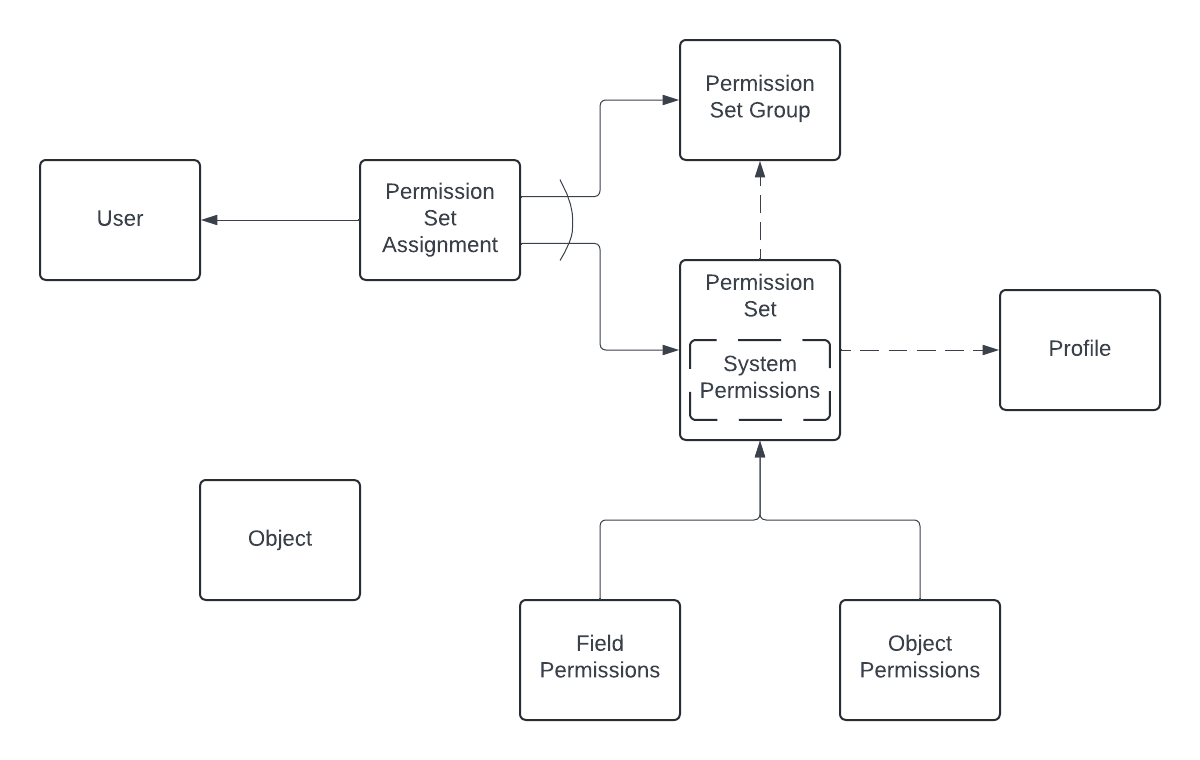
This fine diagram (even if I say so myself, the which I do), sorta represents the relations of the different entities we've been discussing.
First, there are object permissions and field permissions that define access to objects without a relation to the said object linking up to a permission set, which contains the added system permissions (if any, hence the dashed line on the box) - and then can optionally link up with a profile or a permission set group, hence the dashed arrows - and then permission sets or groups can be assigned to users via permission set assignment.
Also bear in mind, that while the relation of a permission set to a profile is optional, a profile must have a permission set accompanying it, and us mortals can't change that (well, we can actually modify the profile permission set, but not its existence).
I know the symbols (nor entities) aren't exactly up to Salesforce Architect diagram standards, but then, I'm not yet a Salesforce Architect, so I can skate 😁
Hope this clarifies something up - then to the fun (practical applications) part!
Fun Things
Righto. So, since I joined my current employer in May I've been working on - among many other things - in a project that has Experience Cloud setup, which means that there will be those pesky external users with their cloned-from-standard external user profiles, which I'll have to lock down in terms of object and field access.
Now... I could do that the hard way, opening up the profile, de-selecting all unnecessary object access in the UI, but that seems excessively tedious and time consuming.
Or I could do it so that I'll download that profile's XML, edit it and upload it back (or something like that). Less time consuming, less tedious, but still, a lot of manual work.
What I have in mind is to export first the profile's object permissions, work some magic on them and then do the same with field permissions, then upload them back to the org.
I'm not lazy - I'm energy efficient.
But let's take a look at the profile's object permissions - and no, I'm not going to expose customer data to you, I'll be doing it in the same sandbox I've been working so far.
Query part
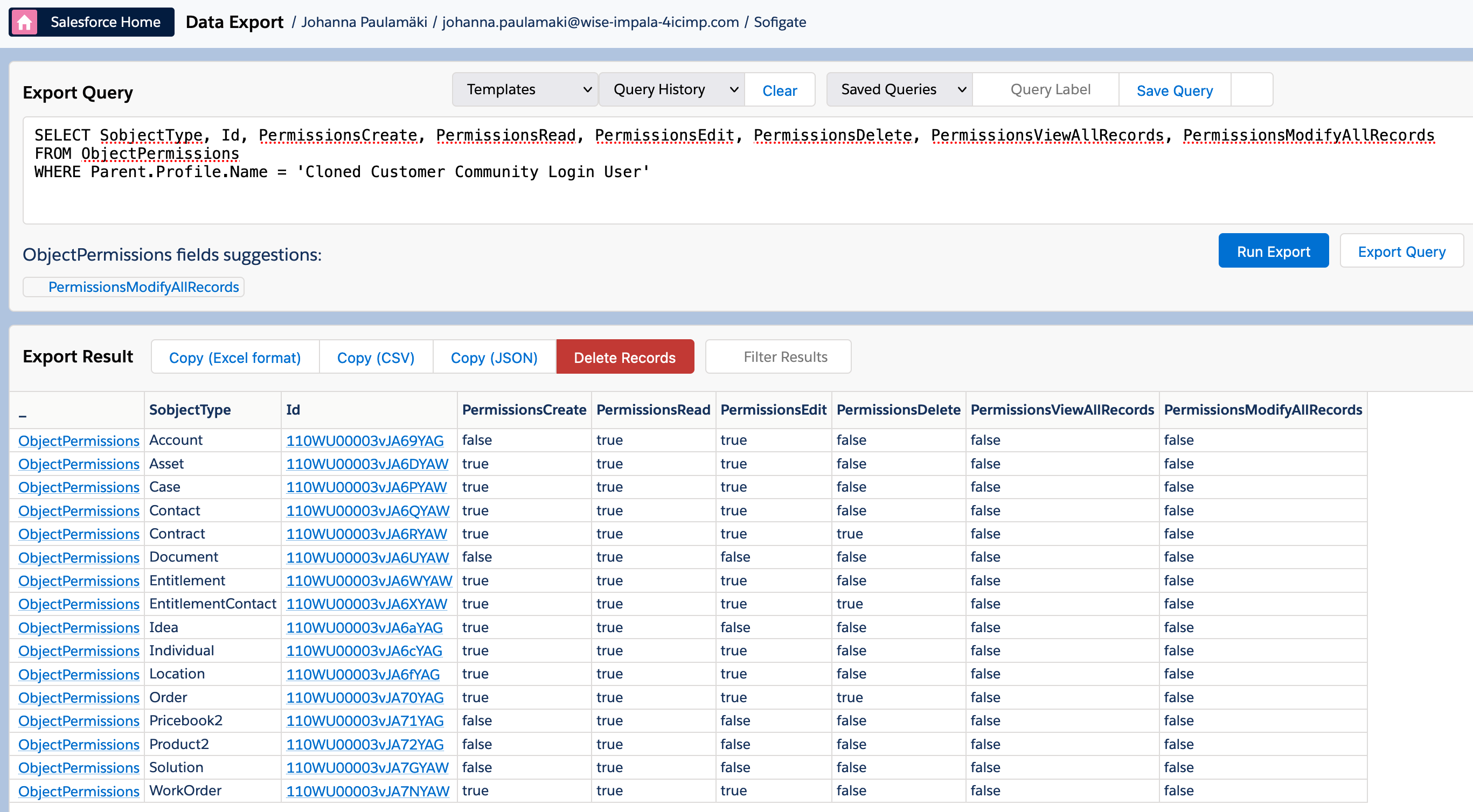
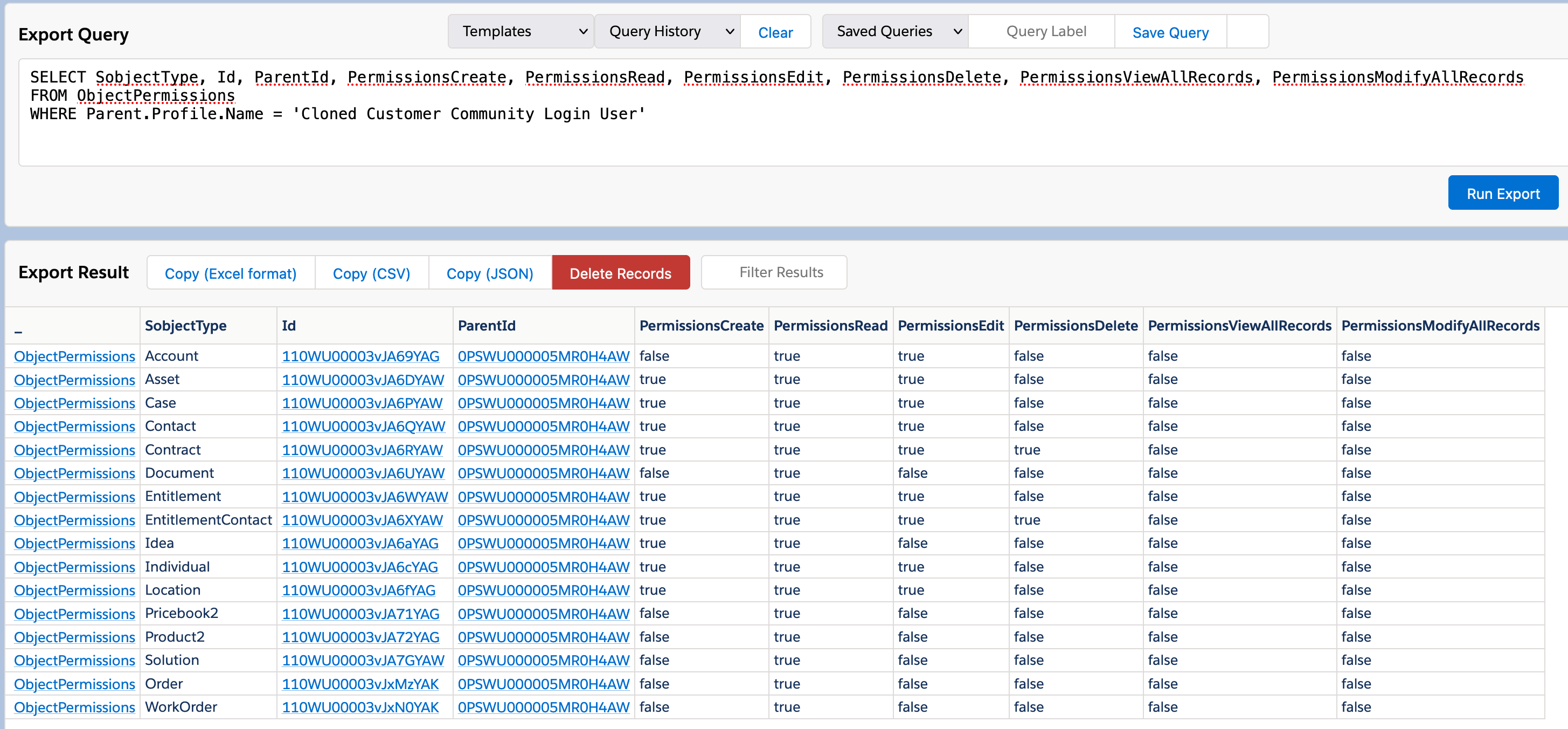
So, let's go for our newly Cloned Community profile with a query for the object permissions:
SELECT SobjectType, Id, PermissionsCreate, PermissionsRead, PermissionsEdit, PermissionsDelete, PermissionsViewAllRecords, PermissionsModifyAllRecord
FROM ObjectPermissions
WHERE Parent.Profile.Name = 'Cloned Customer Community Login User'
...and we'll get a tidy table for our efforts:
Aight, what next? We know we don't want the community users to have any access to half of those objects, but how do we get there?
Excel, my friend, Excel, is the answer.
Modifying the data part
Click on the "Copy (Excel format)" button, fire up Excel, or your table software of choice, I've even used Google Sheets for this.
As we won't be saving CSV files, the pesky Nordic Excel limitation of tending to save data in semicolon-separated format won't be an issue.
But now, fire up the Excel, and paste the data there; mine looks like this:
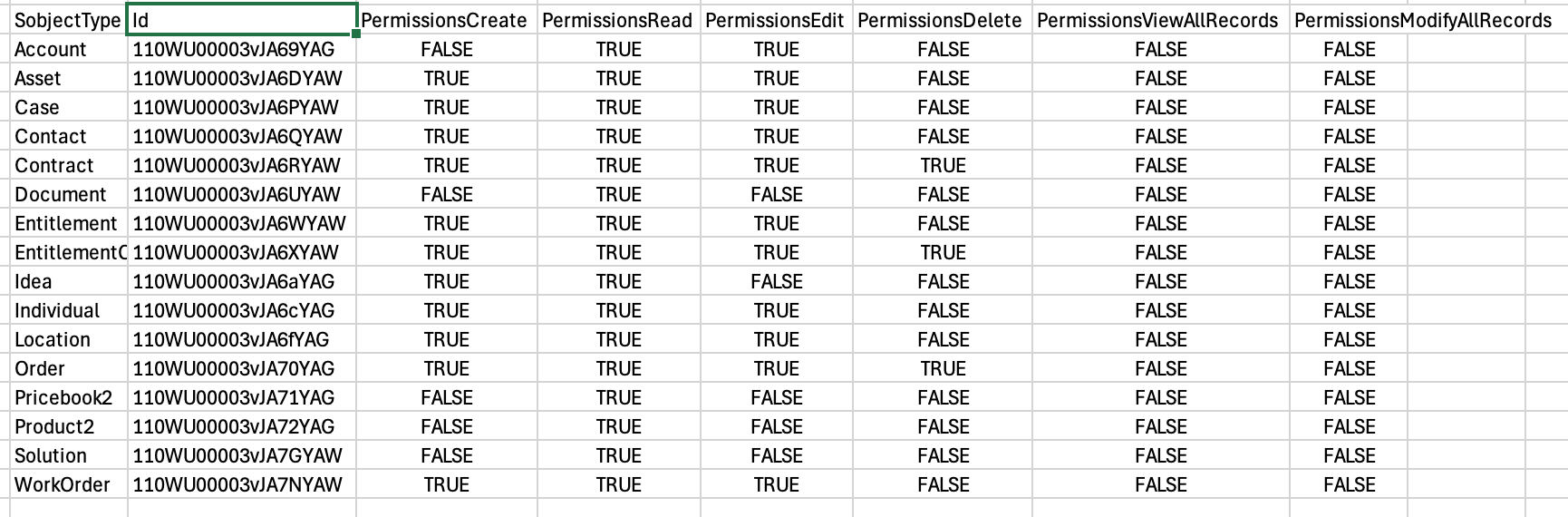
Okay. Now we've decided that we don't want the portal users to access, say, WorkOrders or Orders, both of seem to currently be accessible, having PermissionsCreate, PermissionsRead and PermissionsEdit as "true", and Orders also have Delete as true.
So we'll swap those to False. Just pick a "false" field at random and overwrite the true values with it:
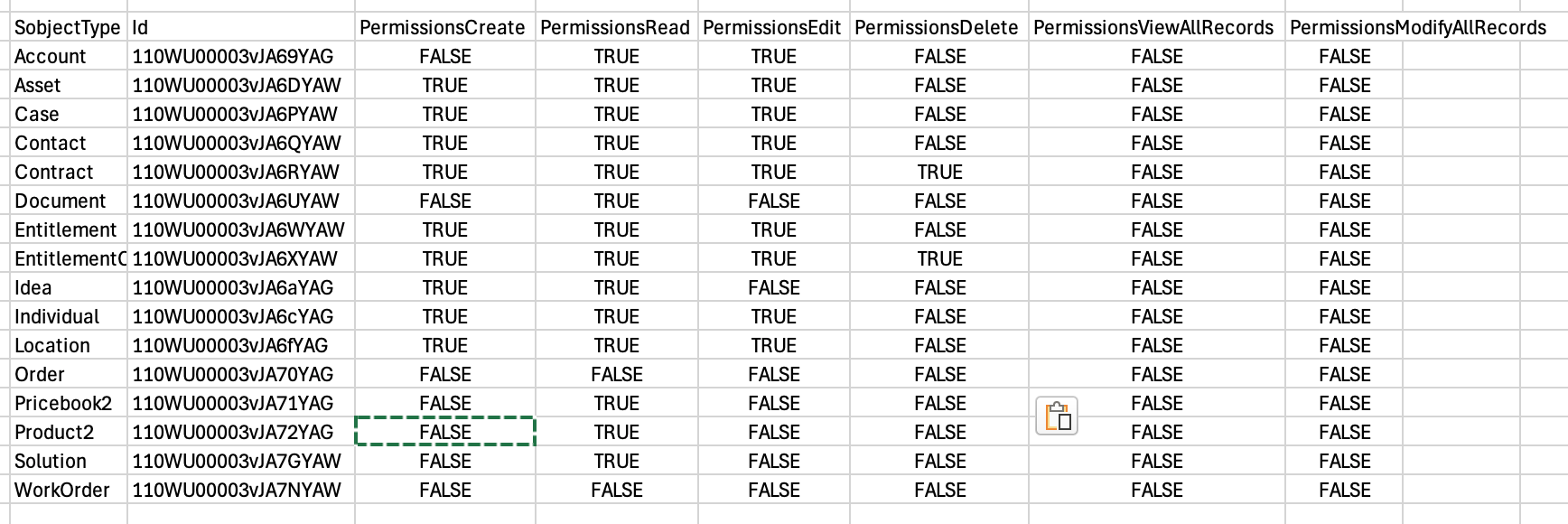
Well then - we have updated values in our Excel sheet. The next step is to select the data that we want to update.
Basically, in this case, we only would need to select the two rows that we have, plus the header row, and we're doing nothing with the View All and Modify All permissions (all are false to begin with), so we can ignore those.
So I'll clean up the data-to-be-updated a bit:

Okay - now we can update the data.
In principle, it wouldn't matter if we uploaded the whole table, but at some point there will be headache, if we update more than we need to, so it's a good idea to keep it limited to what you're updating. Trust me on this one.
For one thing, it's cleaner - you have better visibility into what you're updating, and for another thing, even when you do some modest few hundred or a thousand record update and then there's a record triggered automation behind that, and soon it'll fail due to row lock errors (or something like that).
Updating the data part
So far we've been working a lot in the Data Export section of the Inspector - now we'll head to the Data Import section, the Data Import button is just below the Data Export button, just click on it.
Out of the box, it should look something like this:
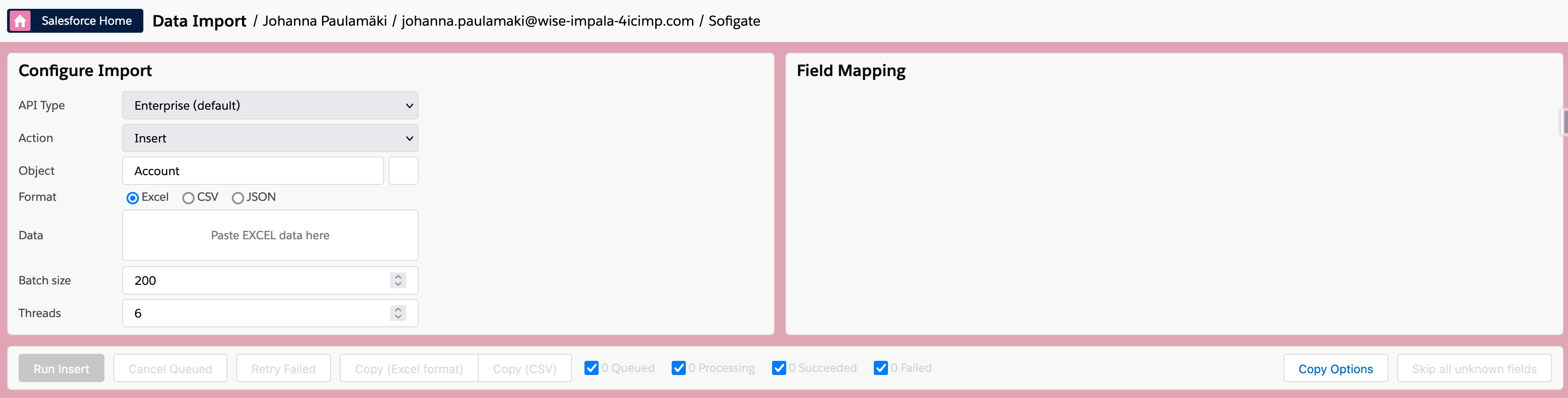
Now, what we'll do is that we'll select the data from the table; you can select the sObjectType column if you want to, but what we really want is the Id and the value columns. Be sure to pick the header row as well.
Then, the Excel data format should be selected there; doesn't matter if you paste from LibreOffice or Google Sheets - the cell structure is what matters, with CSV the app will expect you to have commas between values & whatnot and JSON I haven't even tried yet.
So just basic copy:
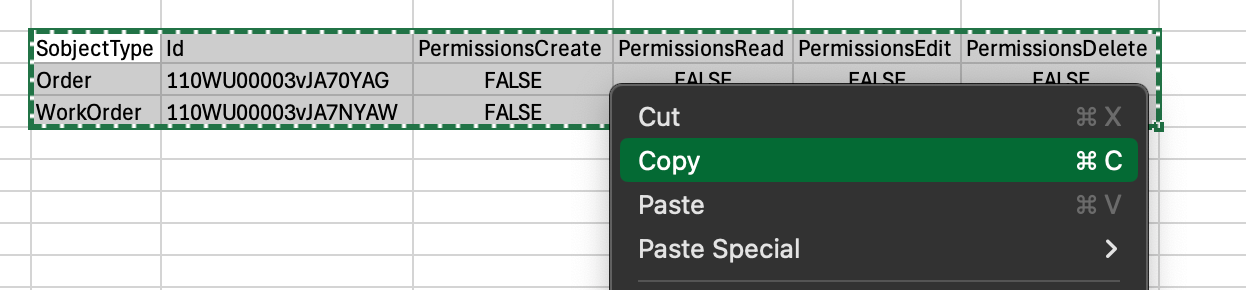
Feel free to cmd/ctrl+c it out if you want to, no need to right click.
Okay - in the import tool, let's make few changes:
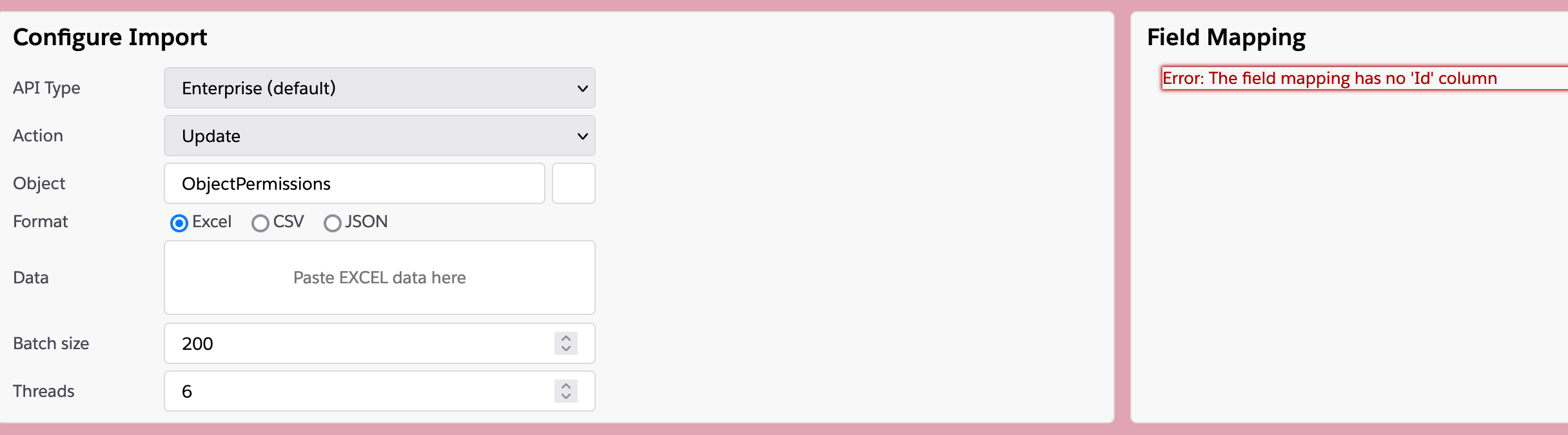
First - change the Action from Insert to Update. That will cause the error to pop in the right hand screen; that's to be expected - all Update operations must include the ID of the record to be updated, and we haven't provided that yet, so.
Next, change the Object from Account to ObjectPermissions.
Once that's done, you can click on the "Paste EXCEL data here" area and cmd/ctrl+v the data in there, or in more civilized manner, right-click paste it in:
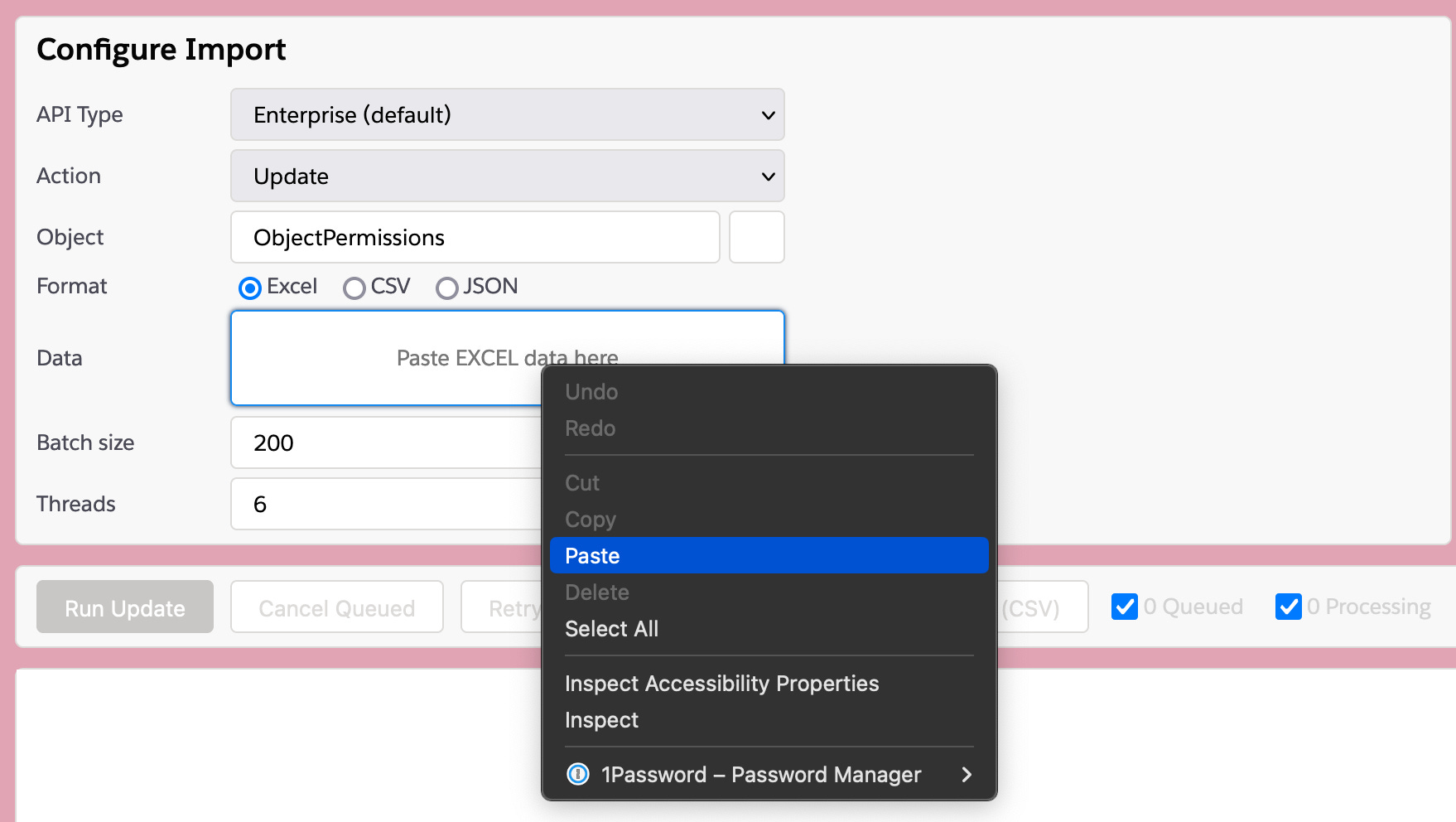
So there:
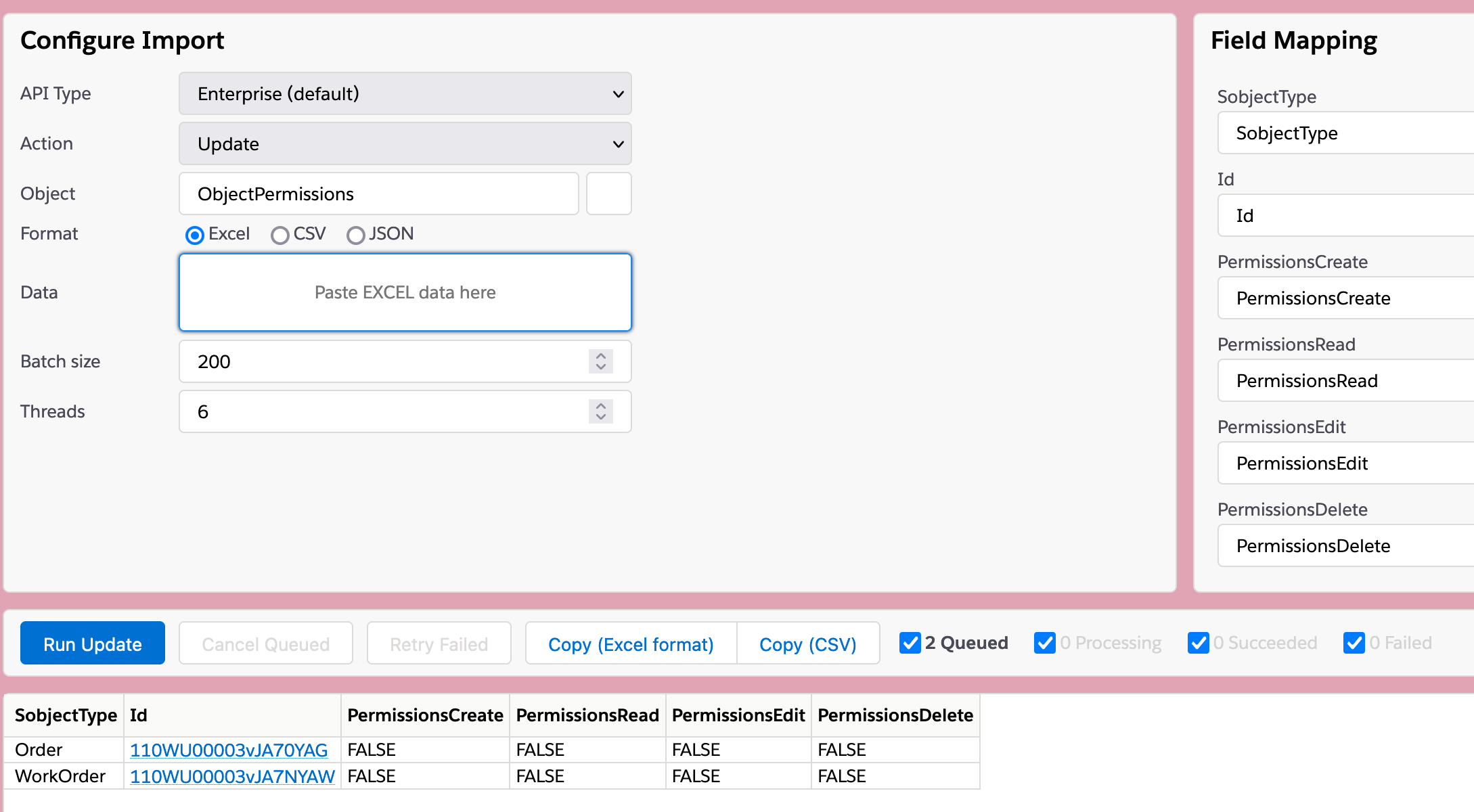
Now, only thing is that we don't want to change or even touch the SobjectType (funny how it's spelled every which way...) - so click on that, field on the top right then clear the field, which will cause an error, then hit the Skip button, which will then cause the column to be omitted.

...and then we're done and can click the blue "Run Update" button.
Because we're updating live data in a live environment (sandboxes aside, Salesforce is always live), we'll get a confirmation prompt, and after confirming that we really want to proceed, that's that, and we'll see the data updated then & there on the screen.
If we're feeling über prudent, we could go back and query the permissions like so... but first:
The Inspector has this super handy automatic feature called Query History - it will automatically save and let you pull up any fairly recently used query. I believe it is org specific, but in theory it could also be browser specific - I don't know, haven't used it that much myself, I tend to be quicker to just type out whatever I need than search it from history.

Anyway, the query, the same as before:
SELECT SobjectType, Id, PermissionsCreate, PermissionsRead, PermissionsEdit, PermissionsDelete, PermissionsViewAllRecords, PermissionsModifyAllRecords
FROM ObjectPermissions
WHERE Parent.Profile.Name = 'Cloned Customer Community Login User'
...and the results:
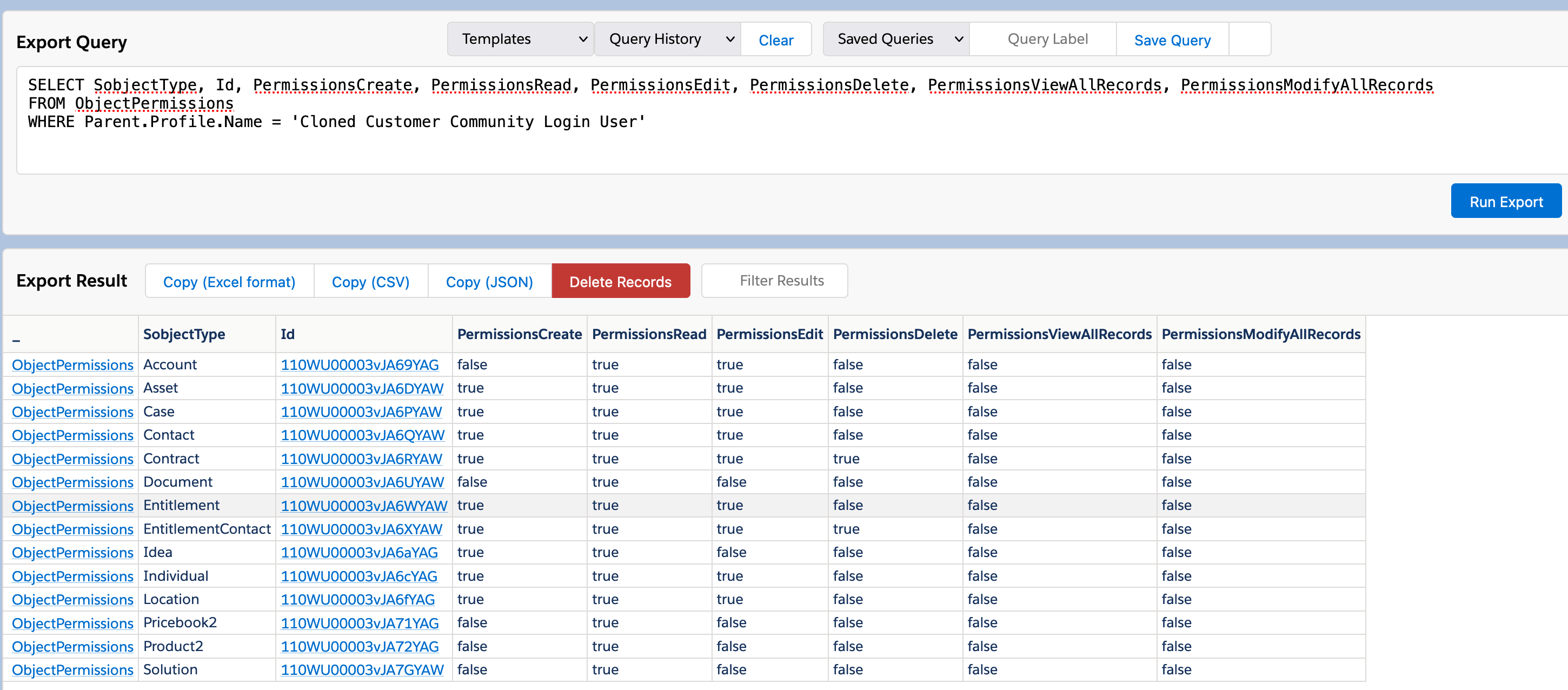
But wait, the Orders and Work Orders have vanished completely... Well, sure, wedid remove all permissions to that object. No permission to read, no permission to create, nothing - so the whole ObjectPermission for that object and for that permission set vanished. Gone.
Of course we could, if we wanted, to, say, go back to the Excel, adjust the data a bit and insert it as a new permission, say, like this:

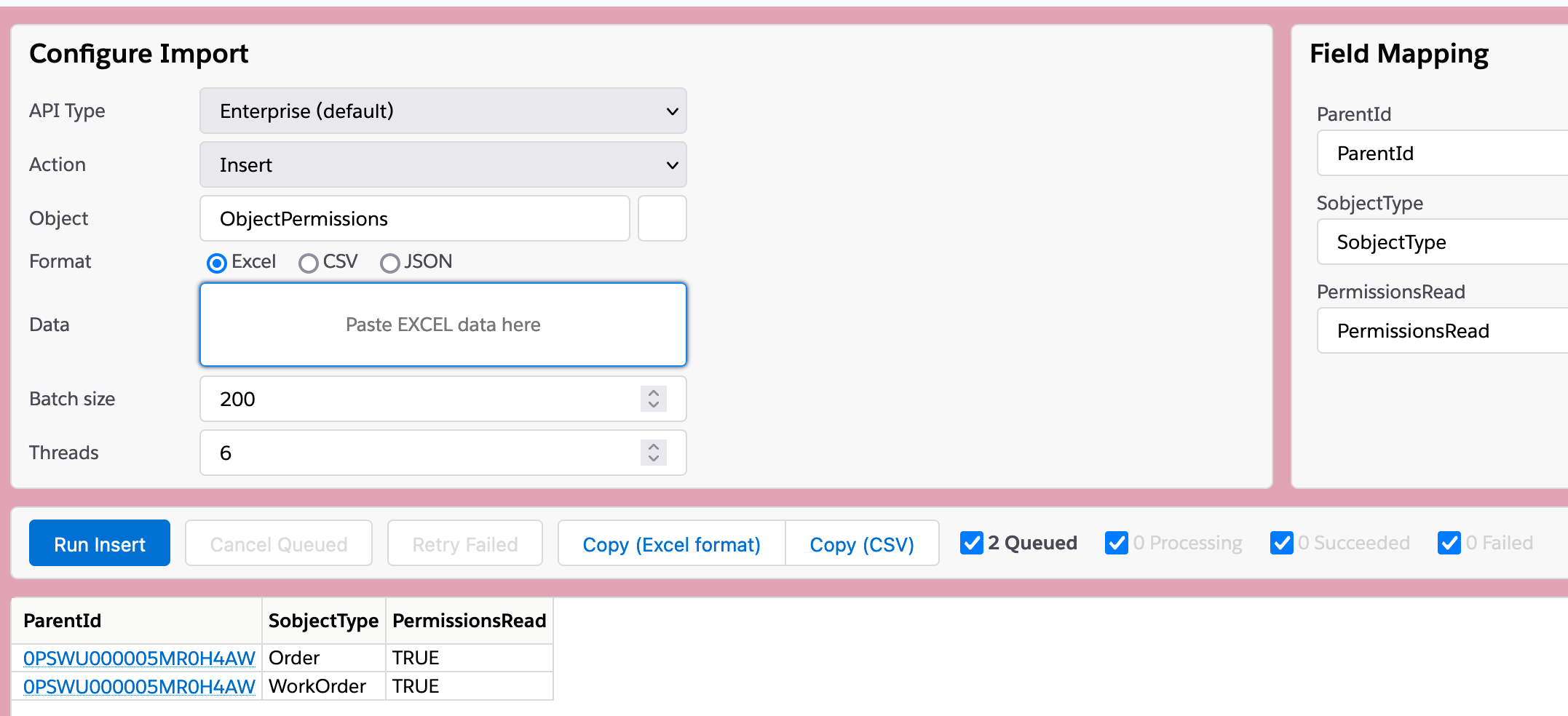
...and when we run that insert operation, we're creating new permissions for those objects for that permission set, and when we run the query again, we'll get the results in the two last rows:
And that's it for now - as per usual, feel free to ping me or comment here with questions; as I've often said to customers, I don't know everything, but I've got a black belt in Google. Plus, I'm endlessly curious about stuff that interests me, and this happens to do so.
Anyway - happy hacking and CU in the Part 3, whenever I find time to write that :)